
Free · 16 printable designs
Free Google review cards for your counter and tables
A printed card with your review QR code, placed where customers finish their visit. Pick a design, add your logo and print it free. Plus how to make an NFC review card customers can tap.
Quick answer
What is a Google review card?
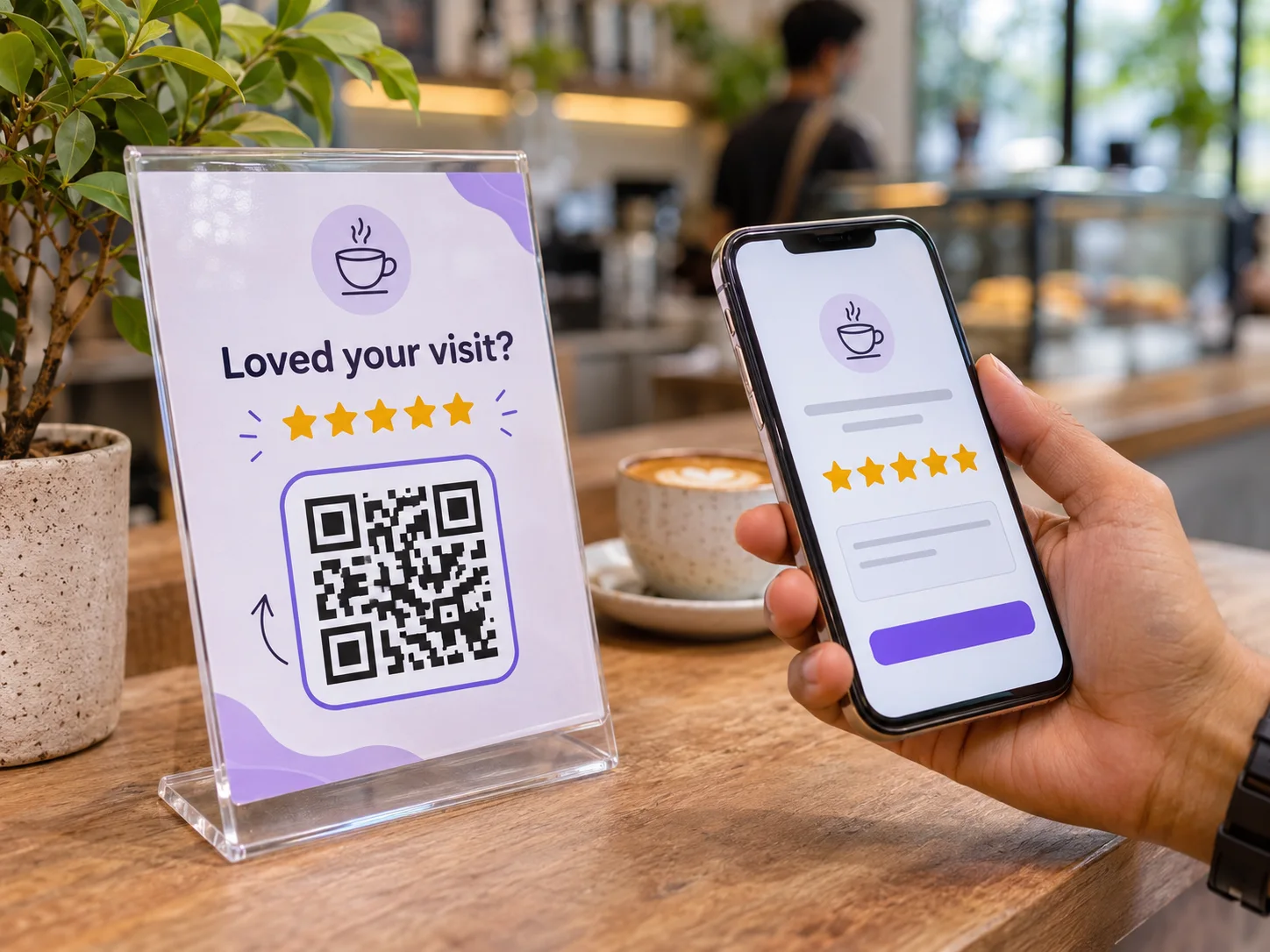
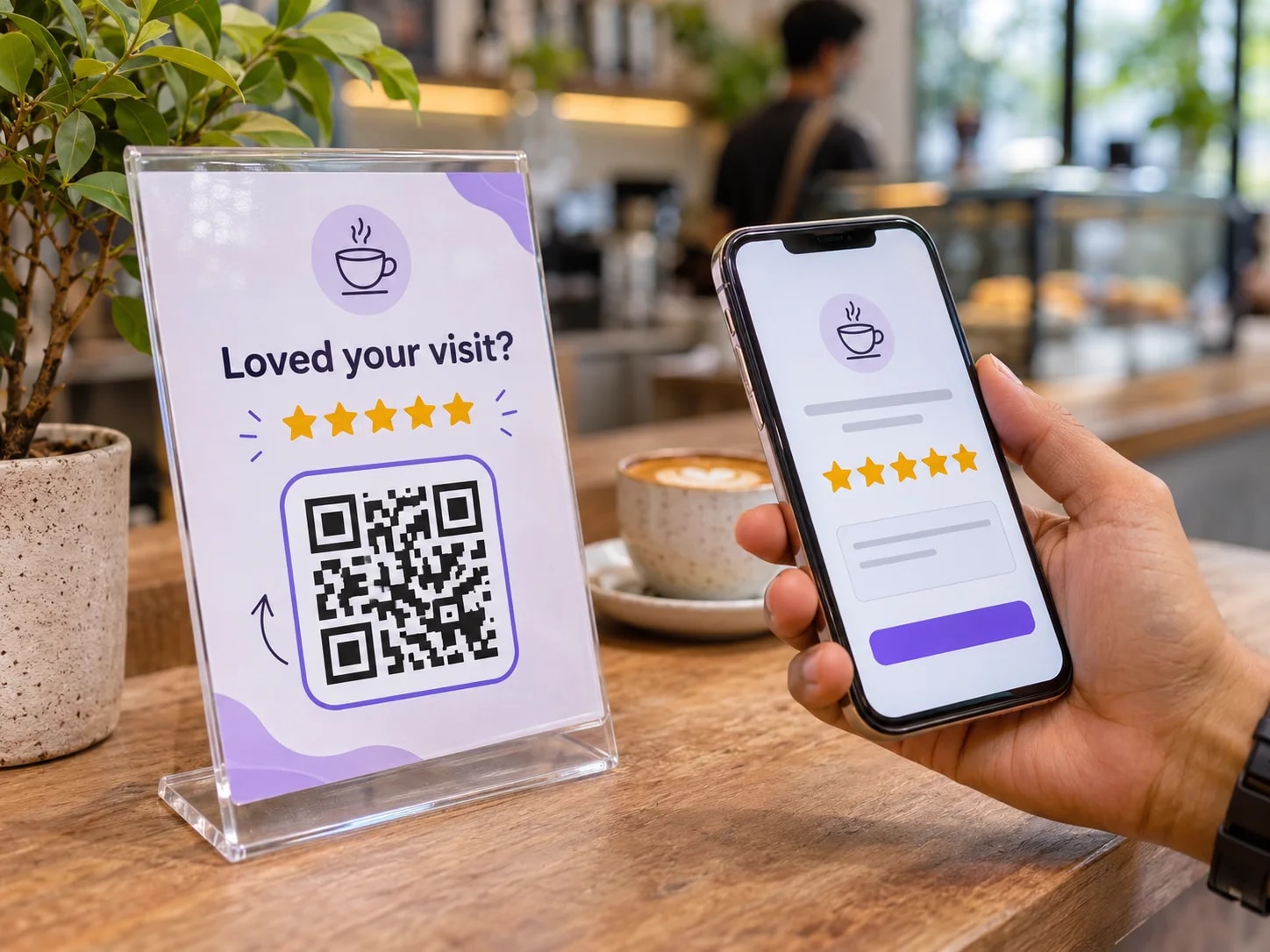
A Google review card is a small printed card or table stand with a QR code, and sometimes an NFC chip, that opens your business's review page. Customers scan it with their phone camera at the counter or table and leave a review in a few taps, instead of searching for you on Google. You can make one free with GrowYourReview: pick one of 16 designs, add your logo, and download it or print it on A5.
- Free to printNo card details needed
- 16 designsYour logo and colour
- PNG, SVG or A5For any printer
- Never reprintChange your link any time
Google review card designs
Six of the 16 printable designs. Each one says “review”, not “menu”, so customers know what the code is for. Hover or swipe to look closer.
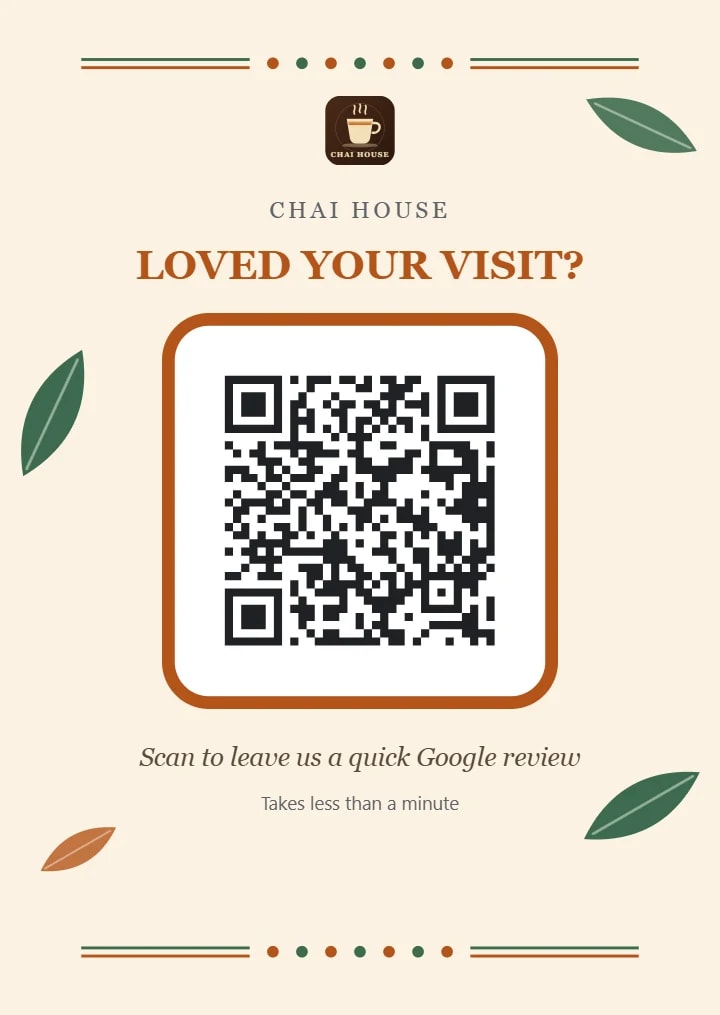
Heritage
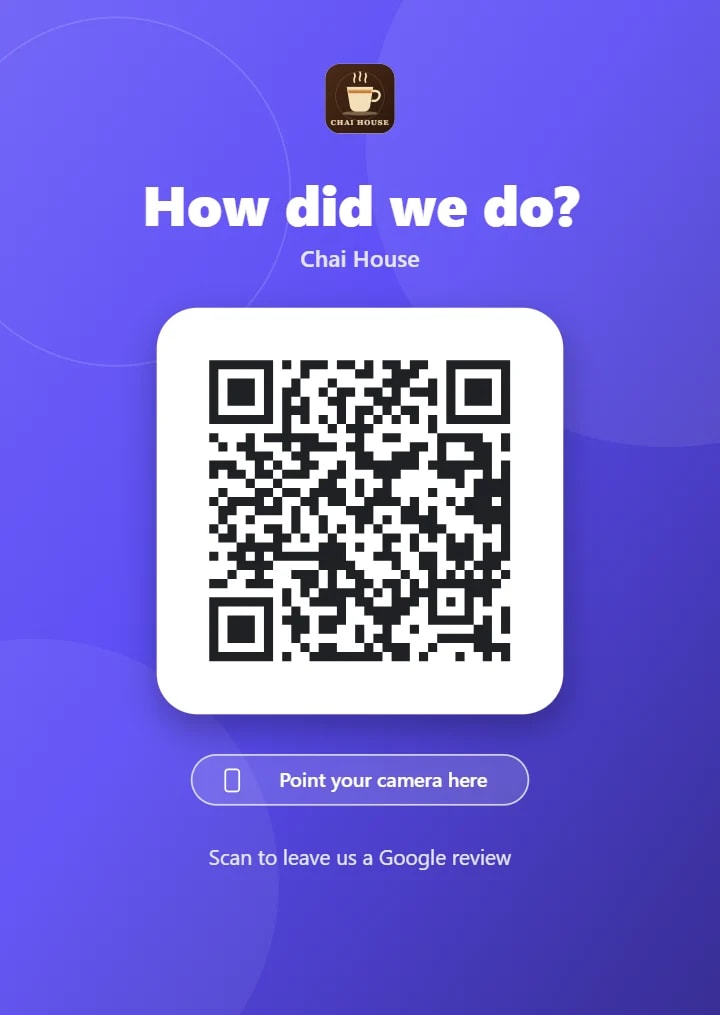
Vibrant
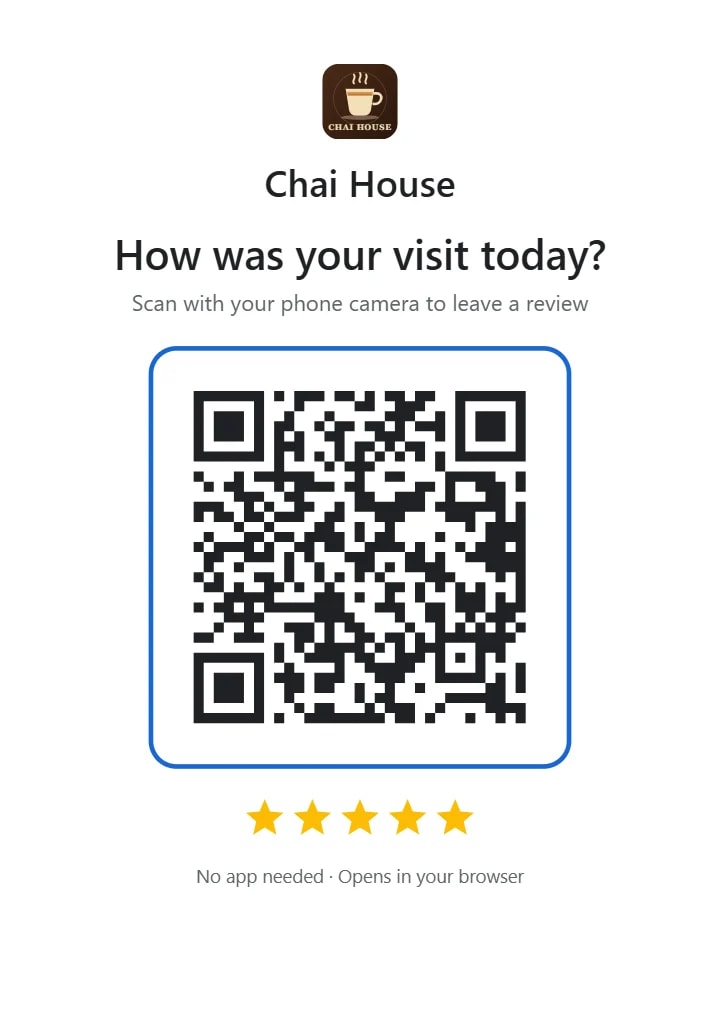
Classic
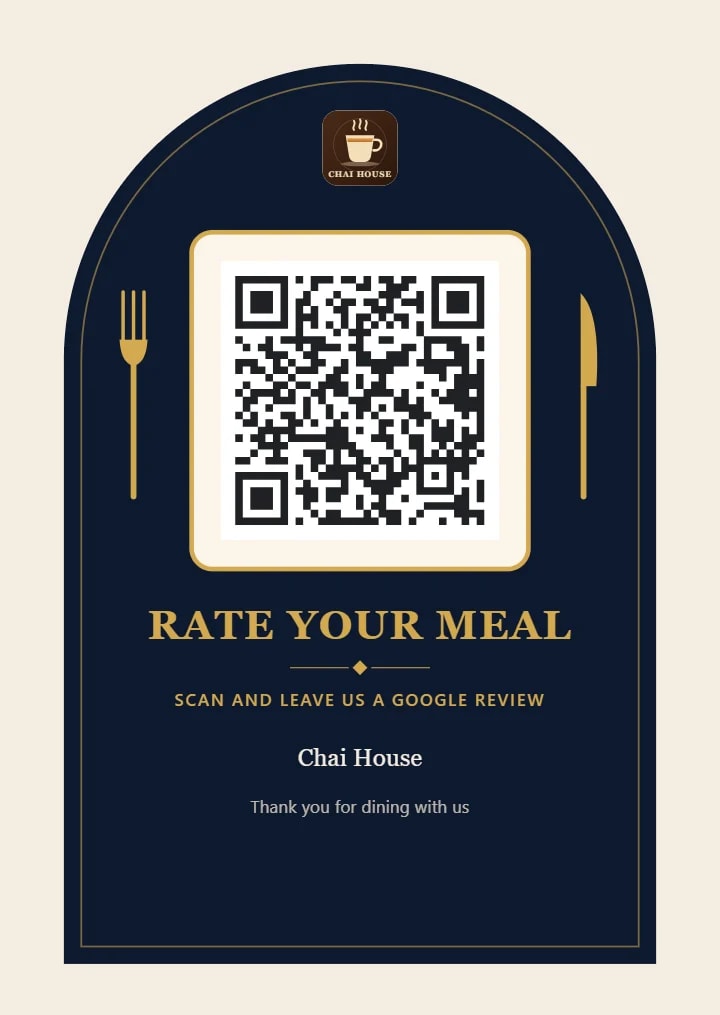
Royal
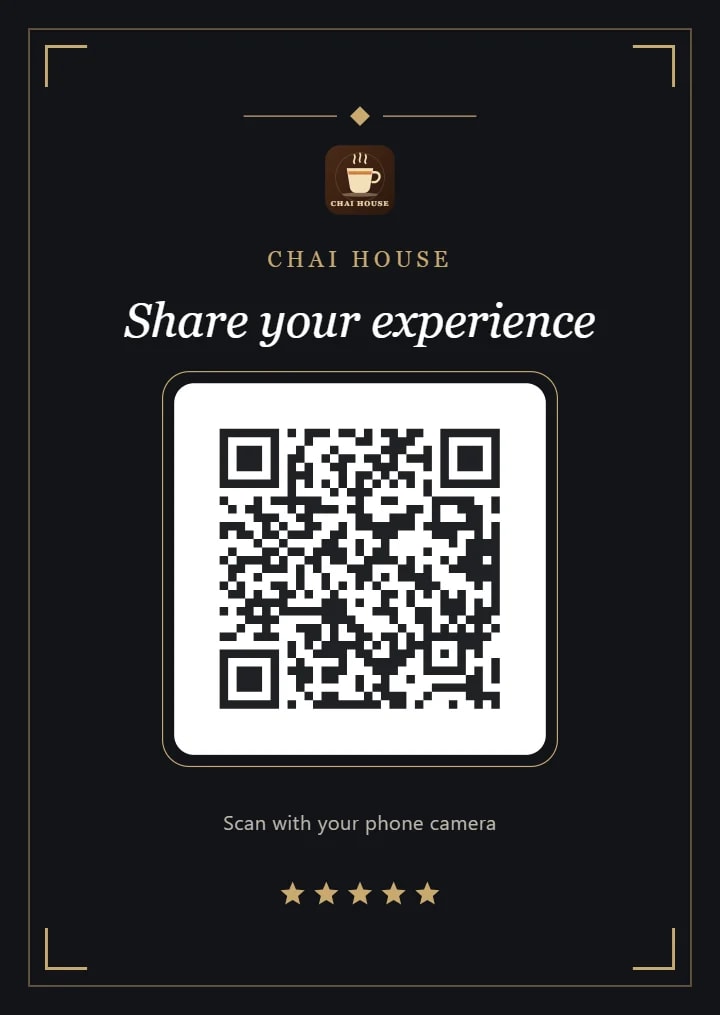
Luxe
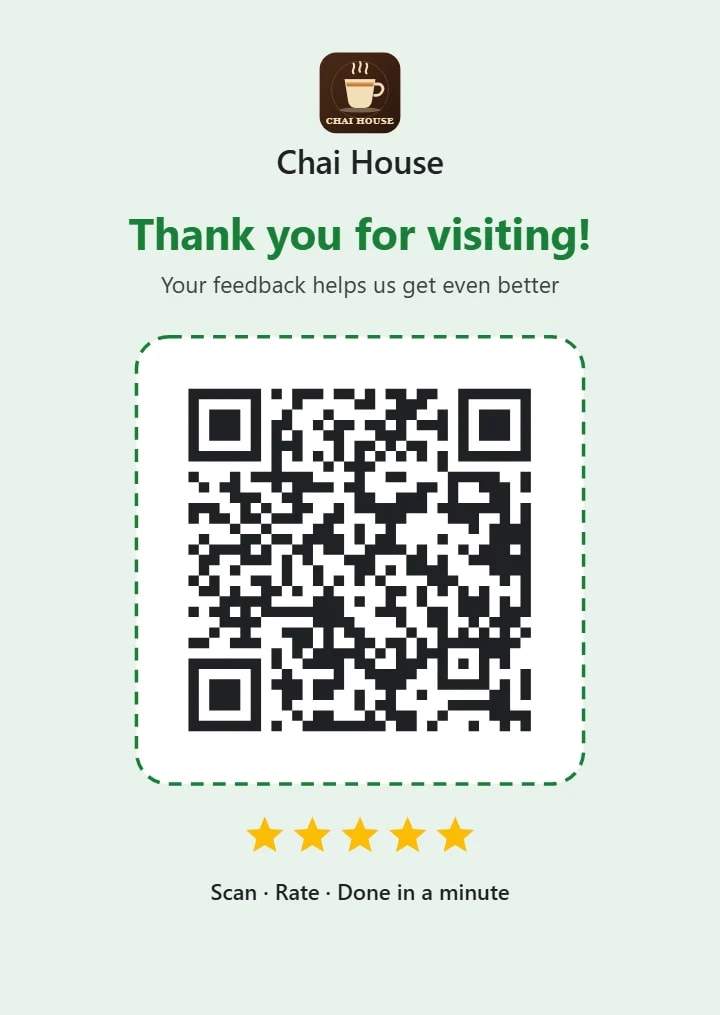
Friendly
Want just the code for your own design? Create a Google review QR code
How to make a Google review card in 2 minutes
Free from start to finish. You only need your Google review link or Place ID.
- 1
Create a free account
With your email. No card, no trial timer.
- 2
Add your review link
Paste your Google review link, or just your Place ID.
- 3
Pick a card design
Add your logo, colour, headline and a photo.
- 4
Download or print
PNG or SVG for your printer, or print it on A5.
Don't have your review link yet? Find it in a minute
What to put on a review card
Five things that get a card scanned. Tap each one to see it on the card.
QR or NFC review card?
Both open the same review page. QR works on every phone; NFC lets customers tap instead of scan.
Best of both: print your QR code on the NFC card, so every phone works.
How to make an NFC Google review card
We don't sell NFC cards, but you can write your GrowYourReview link to any blank card or sticker with your phone.
- 1
Get blank NFC cards
Cards or stickers, sold online and in electronics shops.
- 2
Install a writer app
A free NFC writing app, such as NFC Tools.
- 3
Write your link
Add a URL record and paste your review page link from your dashboard.
- 4
Tap and test
Hold the card to your phone to write it, then test with two phones.
Taps on an NFC card count as link visits on your dashboard; scans of the printed QR count as QR visits.
Where to put your review cards
Where customers wait or finish their visit, at eye level or within reach.
- Counter or tillWhere people pay and wait for a moment.
- Table tentsOne on every table in cafés and restaurants.
- Bill foldersSlide a small card in with the bill.
- Salon mirrorsA small stand at each station.
- Reception desksClinics, studios and offices, at check-out.
- Hotel roomsBedside or on the check-out desk.
- Takeaway bagsA sticker or card inside every order.
- Shop countersNext to the card machine.
- Gyms and studiosBy the door or the water point.
Common mistakes
Why review cards get ignored
- A QR code that's too smallUnder 3 cm, or printed on a busy photo, many phones won't read it.
- No reason to scanA bare QR code says nothing. Add a short ask and “takes 30 seconds”.
- Hidden awayBehind the till or under the menu, nobody sees it. Put it within reach.
- Shiny laminationGlare under bright lights stops cameras reading the code. Use matte.
- A plain QR straight to GoogleIf your review link changes you must reprint, and you can't see how many people scan.
- Offering something for a reviewDiscounts or gifts for reviews break Google's rules. Just ask.
- Only giving it to happy customersGoogle doesn't allow picking who gets asked. Offer it to everyone.
- Never testing itScan the printed card with two different phones before putting it out.
What is a Google review card?
A Google review card is a small printed card or table stand with a QR code, and sometimes an NFC chip, that opens your business's review page. Customers scan or tap it at the counter or table and leave a review in a few taps, without searching for your business on Google.
Are GrowYourReview's review cards free?
Yes. The 16 printable card designs are free during early access. Sign up with your email, add your Google review link or Place ID, pick a design and download it as PNG or SVG, or print it on A5. No card details are needed.
Should I use a QR or an NFC Google review card?
Start with QR: any phone camera can scan it and it's free to print. NFC cards are handy at a counter where customers can tap their phone, but you have to buy the cards and some phones need NFC switched on. Many businesses print the QR code on their NFC card so every phone works.
How do I make an NFC Google review card?
Buy blank NFC cards or stickers, install a free NFC writing app such as NFC Tools, and write your review page link to the card as a URL record. Then test it with two different phones. GrowYourReview doesn't sell NFC cards, but your GrowYourReview link works on any of them.
What size should a Google review card be?
A5 works well as a table tent or counter stand, and a business-card size works for handing out or putting in a bill folder. Whatever the size, keep the QR code at least 3 × 3 cm so phones can read it easily.
Can I add my logo to the review card?
Yes. Upload your logo once in GrowYourReview and it appears on your card and in the centre of the QR code. You can also change the colour and the headline, and add a photo of your place on some designs.
Do I need to reprint the card if my Google review link changes?
No. The QR code opens your GrowYourReview review page, not Google directly, so you can update your Google review link in your settings and every printed card keeps working.
Is it allowed to hand out Google review cards?
Yes. Google encourages businesses to ask customers for reviews. Don't offer a discount or gift in return, and give the card to every customer, not only the happy ones.
The Google reviews playbook
Up next: Google Review Link
Guide 2 of 5
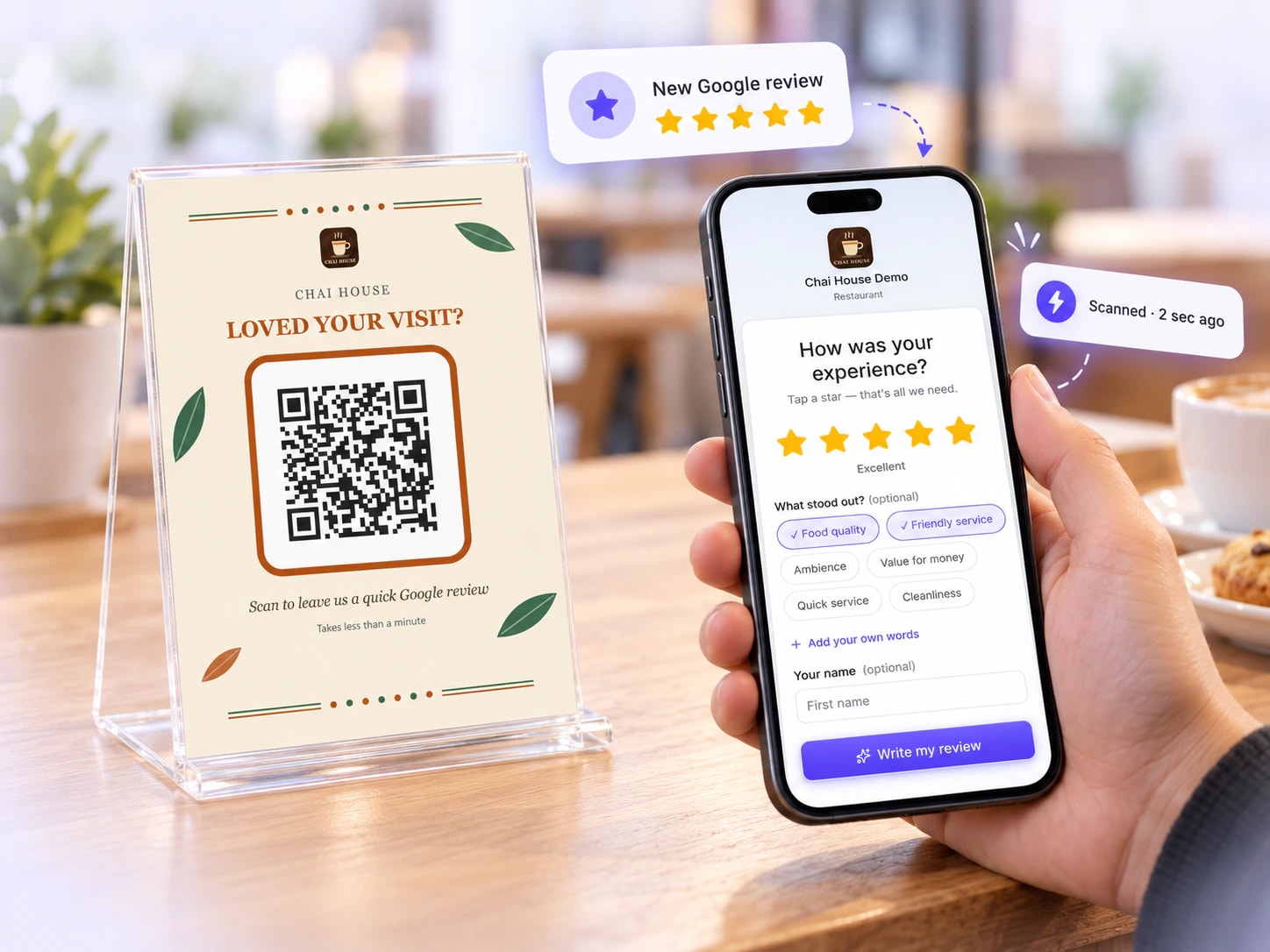 01Google Review QR CodeCreate a free QR code customers scan to leave a Google review.Read guide
 You're reading02Google Review CardFree printable review cards, plus how to make an NFC card.
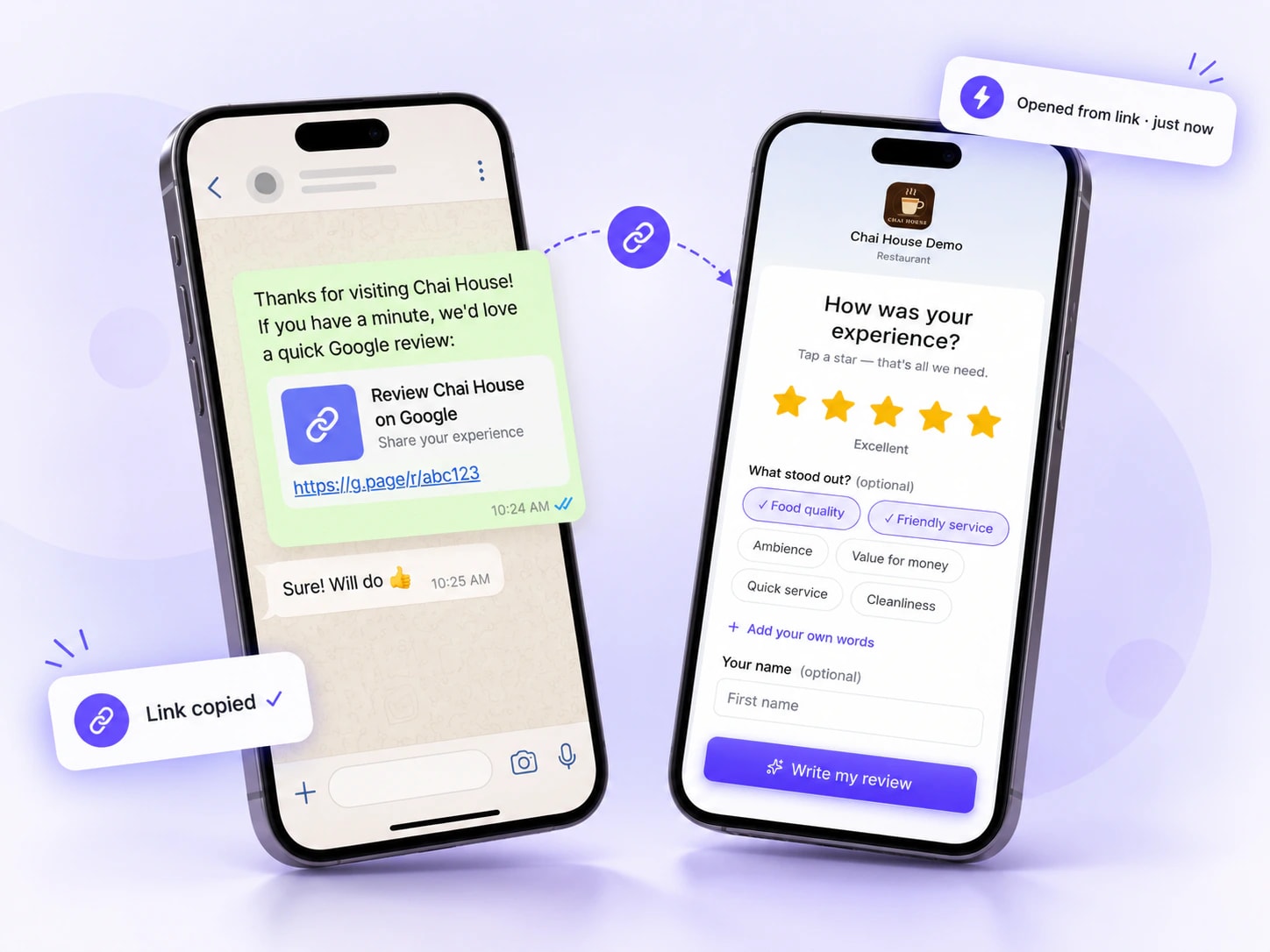 Up next03Google Review LinkFind your review link and share it on WhatsApp, SMS and email.Read guide
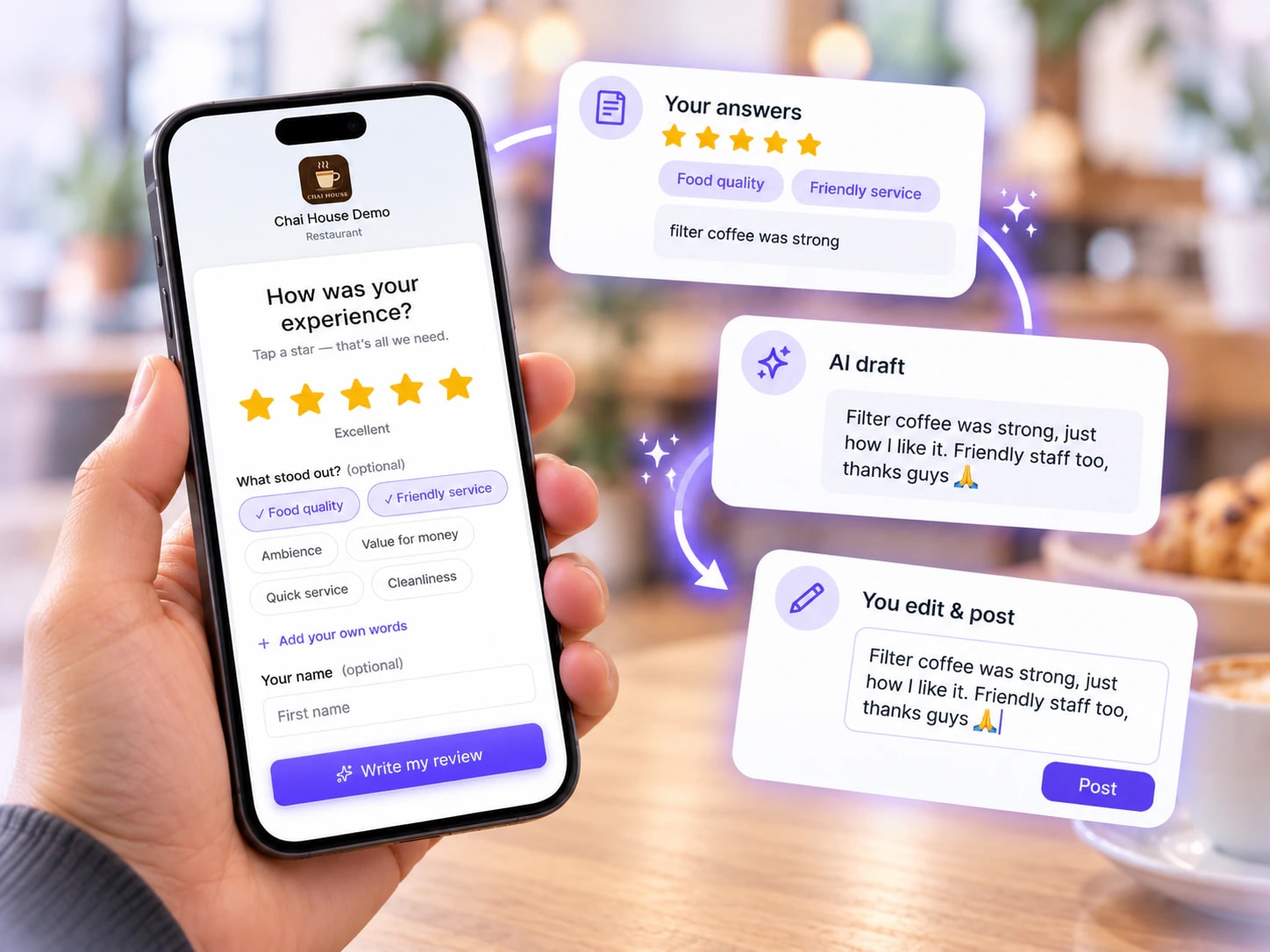 04AI Review WriterHow AI helps customers put their own experience into words.Read guide
 05Google Review GeneratorHonest, AI-assisted review writing, never fake reviews.Read guide
Free for local businesses
Print your Google review card in 2 minutes
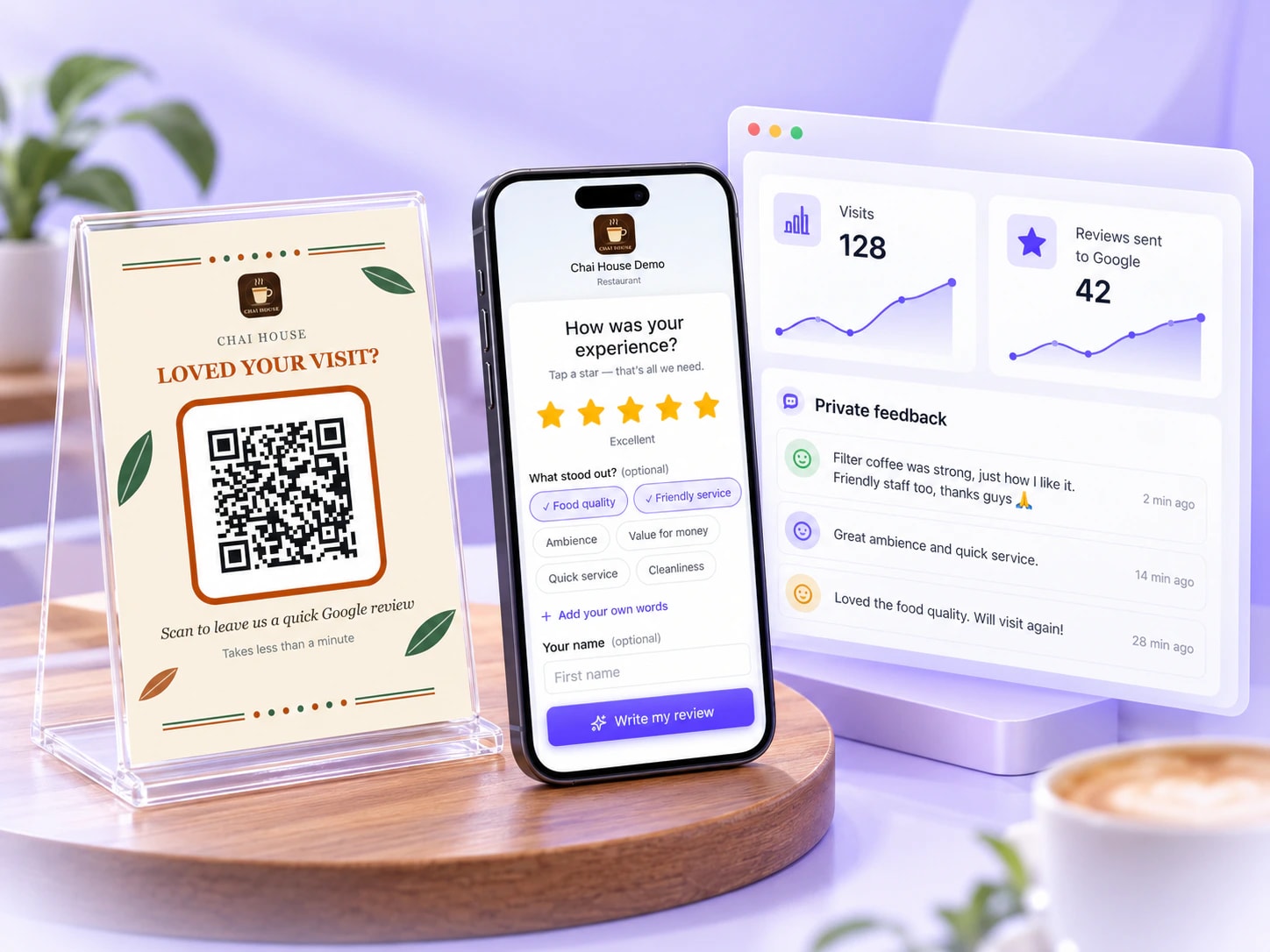
Pick a design, add your logo, and put a card on every table and counter. Every scan opens your review page, and you see every scan on your dashboard.
- Free during early access
- No card needed
- Set up in 2 minutes
Already have an account? Log in