
AI Reviews · Every feature

Every feature of AI Reviews, explained

A closer look at the free Google review tool: what customers see when they scan, the settings you control, the dashboard numbers, your private feedback inbox and the history of every AI draft.

  • 16 QR designs
  • Private feedback inbox
  • 7, 30 and 90-day reports
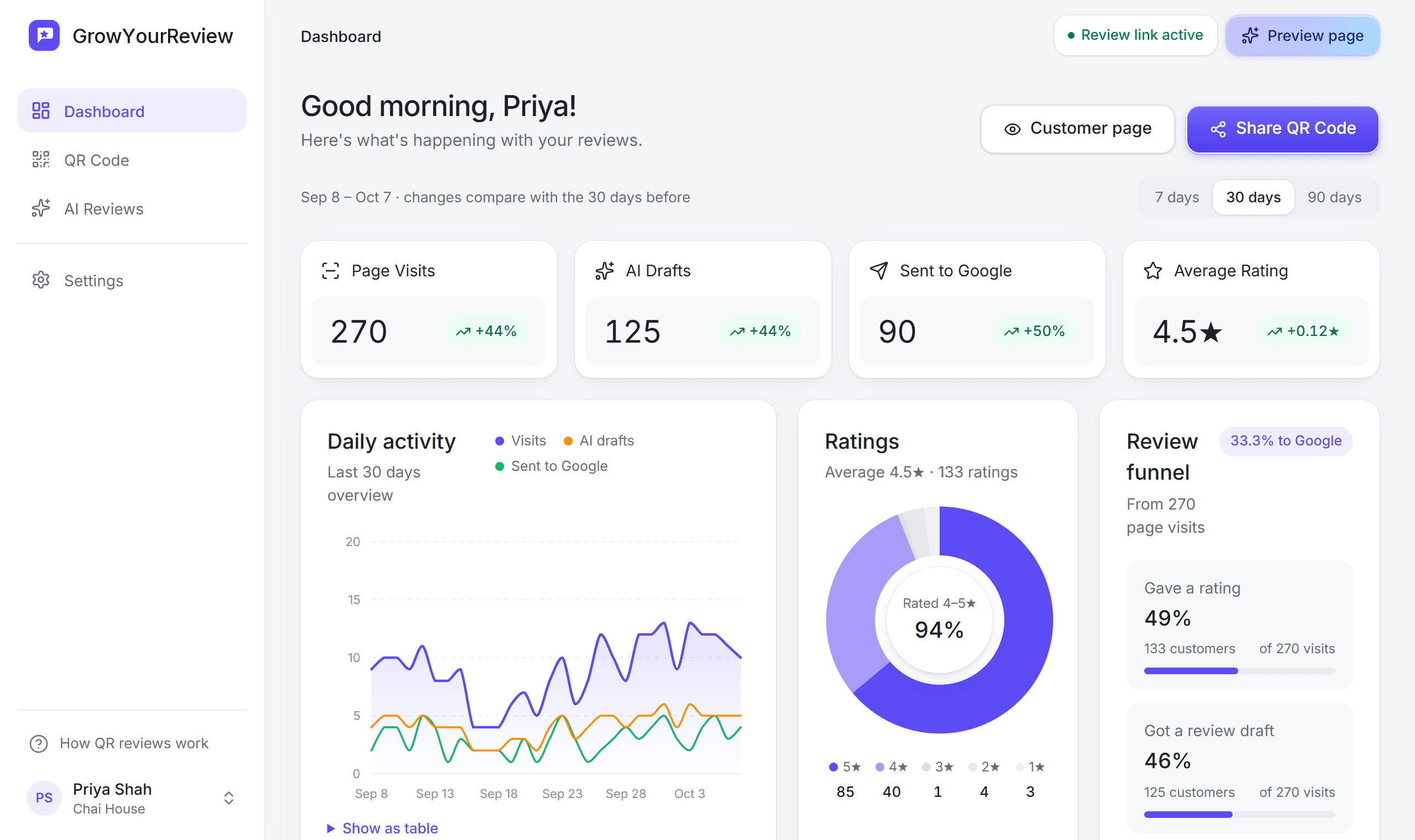
The AI Reviews dashboard: page visits, AI drafts, reviews sent to Google, ratings and the review funnel.

What your customers see, step by step

No app and no login. The whole flow runs in the phone browser and takes under a minute.

01 /

Scan

Put one QR code on the counter, tables or the bill. Customers open it with their phone camera — no app, no sign-up.

Pick a card design and colour, add your logo, and print. Or send the same link by WhatsApp, SMS or email.

Chai House

How was your visit?

Share it anywhere

  • Counter & tables
  • Bills & receipts
  • WhatsApp link
  • SMS & email link

02 /

Rate & tap

Customers tap a star rating, then — only if they want — the service they used, who helped them and what stood out.

Every question is optional. Most people are done in a few taps.

How was your experience?

What stood out?

✓ Friendly staff✓ Quick serviceAmbience

Who helped you?

Priya ✓

Typing needed

None

03 /

AI writes it

For 4–5★ ratings, GrowYourReview writes a short, natural review from the customer's own answers — never invented details, never the same twice.

They can edit it, then one tap copies it and opens your Google review page.

Here's your review

staff were lovely and I barely had to wait, masala chai was so good. will be back 😊

Copy & Post on Google
Only what they said
Casual, human tone
Every one different

04 /

Learn & improve

Low ratings come to you first. Customers tap what could be better and it reaches you privately, so you can fix it — they can still choose to post on Google.

See visits, reviews and what customers mention most on one simple dashboard.

Private feedback

Tea was cold today

Slow serviceFood quality

Sent privately to you.

Sent to Google

128

24%

Set it up once: the Review Assistant

These settings decide what customers can tap and what the AI knows about your business. Change them any time in Settings.

  • About your business and city

    A short description and your city give the AI context, so drafts sound like your place.

  • Services or products (up to 12)

    Customers tap what they came for, like “Haircut” or “Filter coffee”.

  • “What stood out?” options (up to 10)

    Quick taps for happy customers. Each business type starts with suggested options you can edit.

  • “Could be better?” options (up to 10)

    Shown privately to 1–3★ customers, so you learn what to fix.

  • Staff names (up to 20)

    Customers tap who helped them; you see it with each review. It isn't written into their Google review.

  • Suggest with AI

    Not sure what to add? One tap suggests options for your business; you keep the ones you like.

Your review dashboard, explained

What every number on the dashboard means, and how it helps you get more Google reviews.

  • Page visits

    How many people opened your review page, split into QR scans and shared links.

  • AI drafts

    How many customers got a review draft written from their answers.

  • Sent to Google

    How many went on to open Google with their review ready to post.

  • Average rating and stars

    Your average rating, and how many 1★ to 5★ ratings you got.

  • Review funnel

    Visits → gave a rating → got a draft → sent to Google, so you see where people stop.

  • Insights

    The issue unhappy customers tap most, and your latest private feedback.

  • 7, 30 or 90 days

    Every number compares with the previous period, so you know if it's going up.

Private feedback and every draft, kept for you

Two lists in your account: what unhappy customers told you privately, and every review the AI helped write.

Customer Feedback inbox

Feedback from 1–3★ customers lands here, never on Google. Each one shows the stars, the issues they tapped and their own words.

  • Filter by Positive, Neutral or Needs Attention
  • Copy it to share with your team
  • Delete what you've dealt with

AI Reviews history

Every draft the AI wrote for a happy customer, with the stars they gave. Useful to see what customers love most.

  • Filter by 5★ or 4★
  • Copy any draft
  • A separate Reviews list shows every review submitted

Your review QR code and link

One review page, reached two ways: a printed QR code in your shop and a link you send after each visit.

  • 16 printable designs

    Pick a design and colour, edit the wording and download PNG or SVG, or print it in A5.

  • Your logo on it

    Your logo sits in the centre of the QR code and on the customer review page.

  • Never reprint

    The QR opens your GrowYourReview page, so you can change your Google review link and printed codes keep working.

  • Ready share messages

    WhatsApp, SMS and email messages with your link, editable, with the customer's name if you add it.

  • QR vs link, counted

    The dashboard shows how many visits came from the QR code and how many from shared links.

  • No Google login

    Only your public review link or Place ID is needed. No API keys or password sharing.

Questions,
answered

Questions about the details of AI Reviews.

Still have a question? Contact us

Can I change my Google review link later?

Yes. Update it in Settings at any time. Your QR code opens your GrowYourReview page, not Google directly, so every printed QR code keeps working.

What can customers tap on the review page?

A star rating, then the services they used, what stood out and who helped them. You set these in the Review Assistant: up to 12 services, 10 “What stood out?” options, 10 “Could be better?” options and 20 staff names.

Who can see private feedback?

Only you, in your account. Feedback from 1–3★ customers is stored privately and is never published to Google. Customers can still choose to post a Google review if they want to.

What does the review funnel show?

How many people visited your review page, gave a rating, got an AI draft and opened Google to post. It shows where customers stop, for the last 7, 30 or 90 days.

Does the dashboard show reviews posted on Google?

It shows how many customers were sent to Google with their review ready. Google doesn't tell us whether each one was posted, so check your Google Business Profile for the reviews themselves.

Can I delete feedback or reviews?

Yes. Open any private feedback or review in your account and delete it. Deleting your account removes your business and all of its reviews and feedback.

Does the AI make up reviews?

No. It only uses the stars, taps and words the customer gives. The customer reads and edits the draft, and posts it themselves from their own Google account.

Also free

Add a digital business card

One link and QR code with your phone, WhatsApp, social links, hours, your menu and photos.

Learn more

Free for local businesses

Every feature, free. Start getting Google reviews today

The review QR code, AI writer, private feedback inbox and dashboard you just saw, in one free account. Set up in a few minutes.

  • Free during early access
  • No card needed
  • Set up in 2 minutes
Get all features free

Already have an account? Log in